
What is TON?
TON (The Open Network) is a high-performance blockchain platform originally initiated by the Telegram team, designed for large-scale decentralized applications (DApps).
Deeply integrated with Telegram, it enables seamless access to a vibrant ecosystem of Mini Apps. Today, the TON ecosystem includes wallets, games, NFTs, DeFi protocols, social applications, and more.
TON’s native token, GRAM (prev. TON), is used for paying network fees, staking to secure the network, and participating in on-chain governance.
How it works
TON uses a multi-chain architecture composed of a masterchain, workchains, and shardchains. Its dynamic sharding mechanism significantly enhances scalability and transaction throughput.
- Masterchain: The network’s main chain that stores the latest block hashes of all workchains and shardchains, keeping the entire network synchronized.
- Workchain: Independent chains that can have custom rules — for example, an EVM-compatible workchain for running Solidity smart contracts.
- Shardchain: Each workchain can be divided into multiple shards to enable high concurrency. Shards automatically split and merge based on network load, optimizing resource utilization.
How to use TON with imToken
Create a TON account
On TON, wallet accounts are also smart contracts. With a set of mnemonic, you can create different accounts based on the wallet contract type.
imToken currently supports creating accounts with V4 and V5 wallet contract types. Learn more: TON Wallet Contracts and Address Types
1. Tap My Profile → Manage wallets → Add.
2. In the Layer 1 row, swipe left and select TON.
3. Choose a wallet contract type, tap Confirm, then return to the wallet home to enter your newly added TON account.
Receiving and transferring funds
In the TON account, you can click "Transfer" or "Receive" and then perform the corresponding operation.
Receiving
Click "Receive ", share the QR code or copy the address and send it to the other party.
Transferring
Click "Transfer", set the type and amount of token you want to transfer, enter the recipient's address, and then click "Next".
Note: Before making a transfer, please ensure that your account has sufficient GRAM to cover the miner fee.
Explore TON DApps on imToken
imToken supports the TON Connect protocol so you can connect to TON DApps securely and seamlessly.
After you approve a DApp’s connection request, any transaction the DApp initiates will be sent to imToken as a request. Only after you review and confirm it in your wallet will the transaction be broadcast on-chain—your assets remain under your control.
Below is an example using STON.fi (a decentralized exchange) to demonstrate connecting and swapping.
Method 1: Visit inside the imToken App
1. Open your TON account in imToken, switch to the Browser tab, and go to https://ston.fi/.
2. In the DApp, authorize access to your wallet address and confirm the Terms of Use.
3. Tap Connect (top right) → Select Ton Connect to connect your wallet.
4. Choose the pay and receive tokens, enter the amount, tap Swap → Confirm swap, then sign to complete the swap.
Method 2: Use an DApp outside of imToken (scan or deep-link to connect)
When using a DApp outside of imToken (for example, in a desktop browser or in Telegram), you can connect it to imToken in the following ways.
Scenario A: Desktop (browser or Telegram Web)
1. Open the DApp on your computer (e.g., visit STON.fi in a browser, or open @ston_app_bot in Telegram Web).
2. In the DApp, click Connect Wallet to display a QR code.
3. On your phone, open your TON account in imToken, tap the Scan icon (top right), scan the QR code, and Approve.
4. After connecting, return to the DApp on your computer to continue. All transaction requests will be sent to your imToken app on your phone to review and sign.
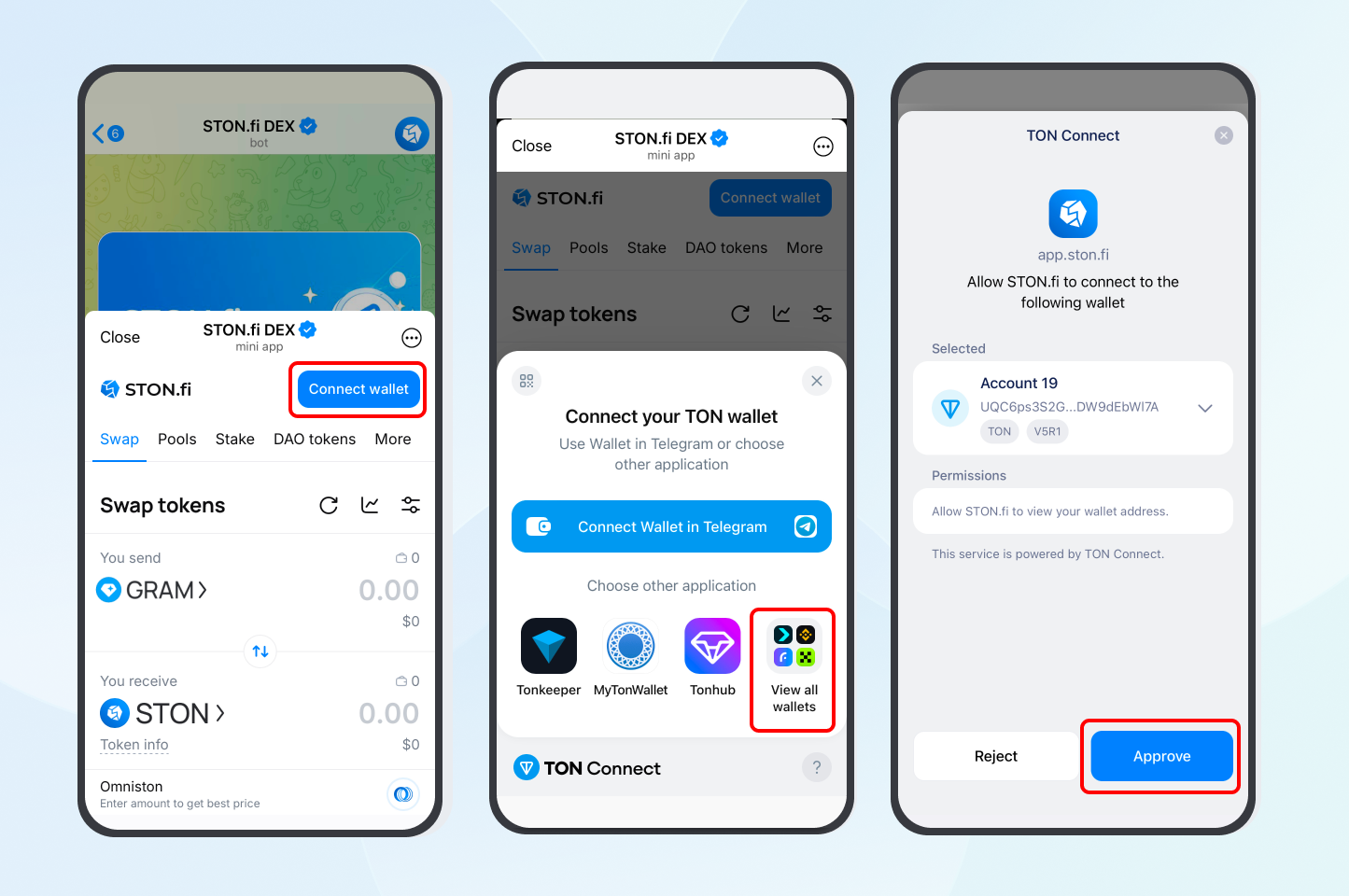
Scenario B: Mobile Telegram app
1. In the Telegram mobile app, open the DApp (e.g., @ston_app_bot).
2. After tapping Connect wallet, expand View all wallets and select the imToken icon.
3. You’ll be taken to the imToken app to complete approval.
4. Once approved, switch back to Telegram to continue using the Mini App.
Manage wallet connections
You can view and manage all active DApp connections from imToken’s wallet connection page:
- View connections: Tap the TON Connect icon to see active DApp connections.
- Disconnect: When you’re done with a DApp or no longer need a connection, tap the Close button next to it to safely disconnect.
Learn more: Manage Wallet Connections with Ease
Explore more TON ecosystem apps
Risk Warning: The content of this article does not constitute any form of investment advice or recommendation. imToken does not make any guarantees and promises for the third-party services and products mentioned in this article, nor assume any responsibility. Digital asset investment has risks. You should carefully evaluate these investment risks and consult with relevant professionals to make your own decisions.